Prepare GitHub Environment
For this lab, we will work with two application repositories: cloud-mastery-backend and cloud-mastery-frontend. First, we need to set up your GitHub account and configure it to work with your Google Cloud Shell environment.
Do you have a GitHub Account?
If you already have a GitHub account, you can skip directly to the next section: Setup Backend Repository
Step 1: Create or Login to an existing GitHub Account
-
Navigate to the GitHub signup page: github.com/signup.
-
Fill in your details (email, password, username) to create your account.
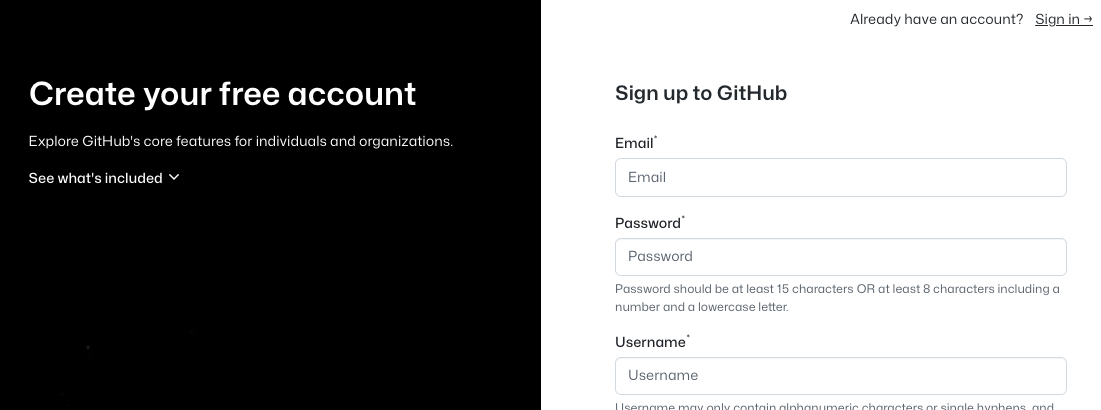
-
Complete the "Verify your account" puzzle to prove you're human.
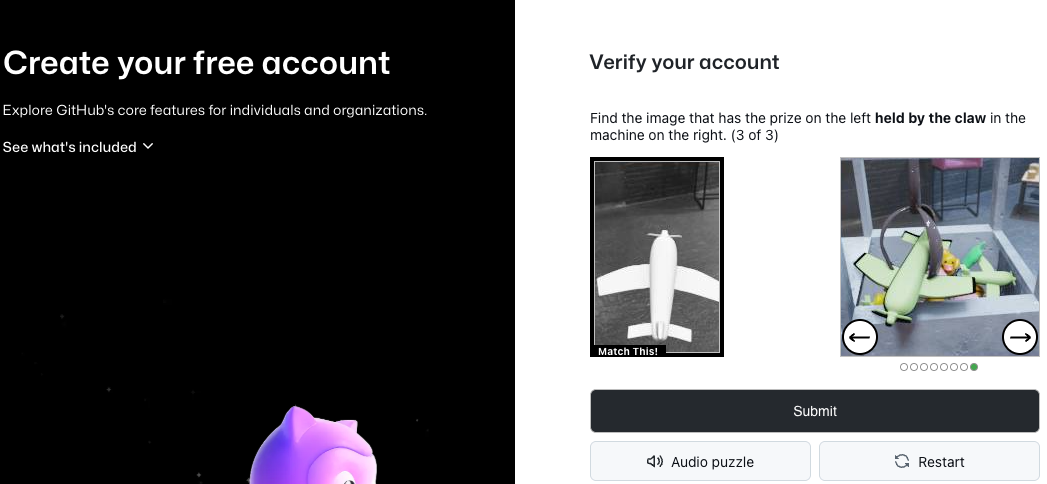
-
GitHub will send a verification code to your email address. Enter this code to confirm your email.
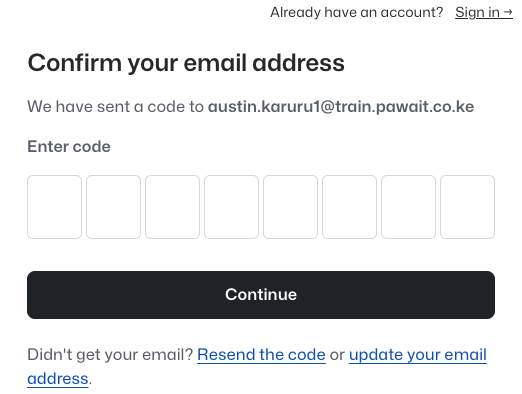
-
Once verified, proceed to sign in. Your new GitHub account is now ready!
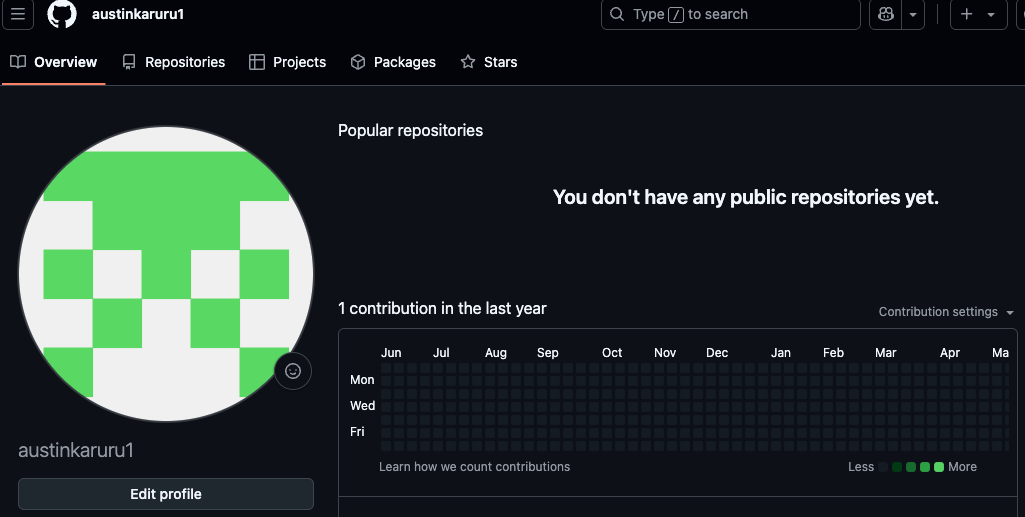
Step 2: Setup SSH Key from Cloud Shell
To securely clone the repository to your Cloud Shell, you need to add your Cloud Shell's SSH key to your GitHub account.
In the context of GitHub, public and private keys are used for secure authentication, primarily through SSH. The private key is kept secret on your local machine, while the corresponding public key is shared with GitHub. This allows GitHub to verify your identity when you perform actions like pushing to or pulling from a repository.
-
Navigate back to your Google Cloud Shell tab.
-
Run the
ssh-keygencommand to generate a new SSH key. PressEnterthree times to accept the default file location and create a key without a passphrase.
-
Verify that the public key file (
id_ed25519.pub) was created.
-
Display the public key and copy its entire content to your clipboard.

-
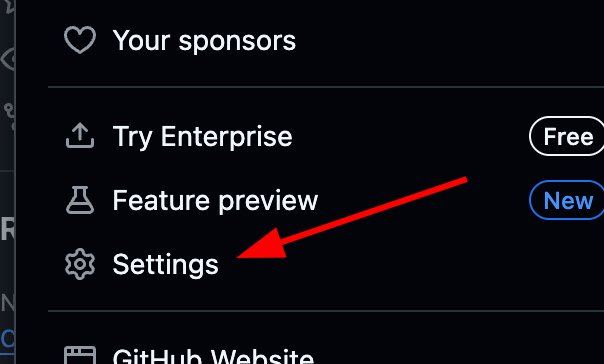
Head back to your GitHub tab. Click on your profile icon in the top-right corner and select Settings.

-
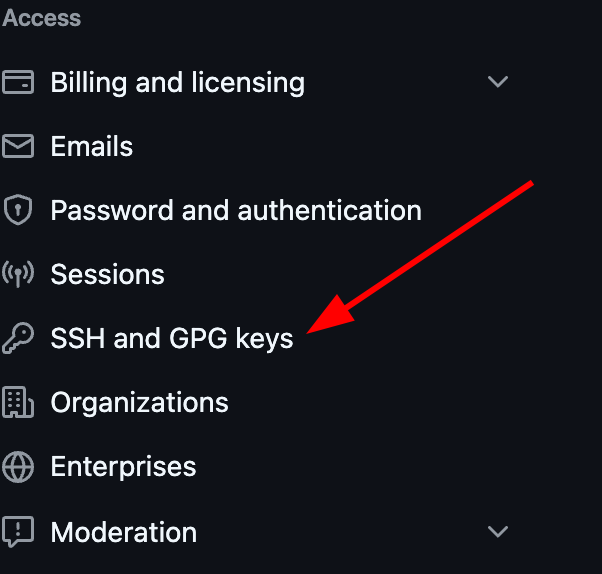
In the left navigation menu, click on SSH and GPG keys.
-
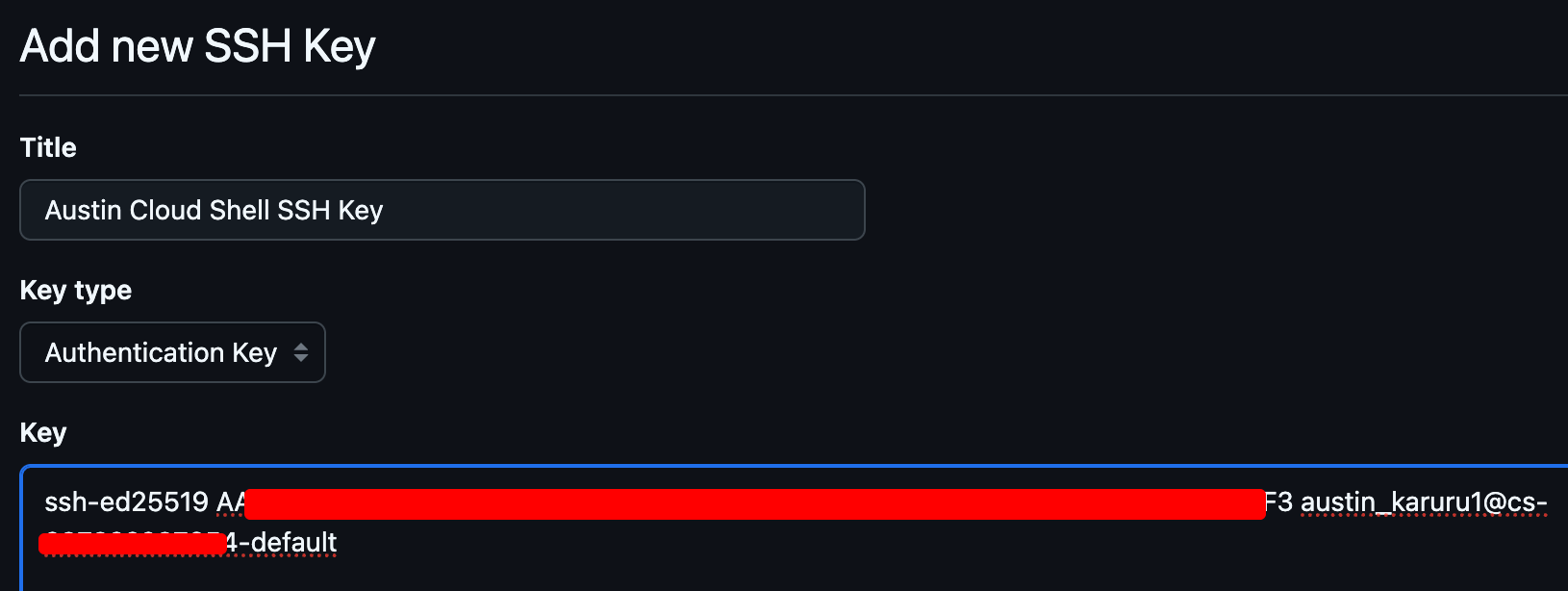
Click New SSH key. Give it a descriptive Title (e.g., "Google Cloud Shell") and paste the copied key into the Key field. Click Add SSH key.
Next Steps
Github setup is complete! You can now proceed to the next step, where we will fork and clone backend repo.